Features
Everything Lyd does on iPhone, iPad and Apple Watch, with the steps to set each one up. Pick a feature to jump straight to it.
iPhone, iPad and Watch
Set the scene
Scenes
Save the speakers, the grouping, the volumes and the music as one Scene, then bring the whole thing back with a single tap.
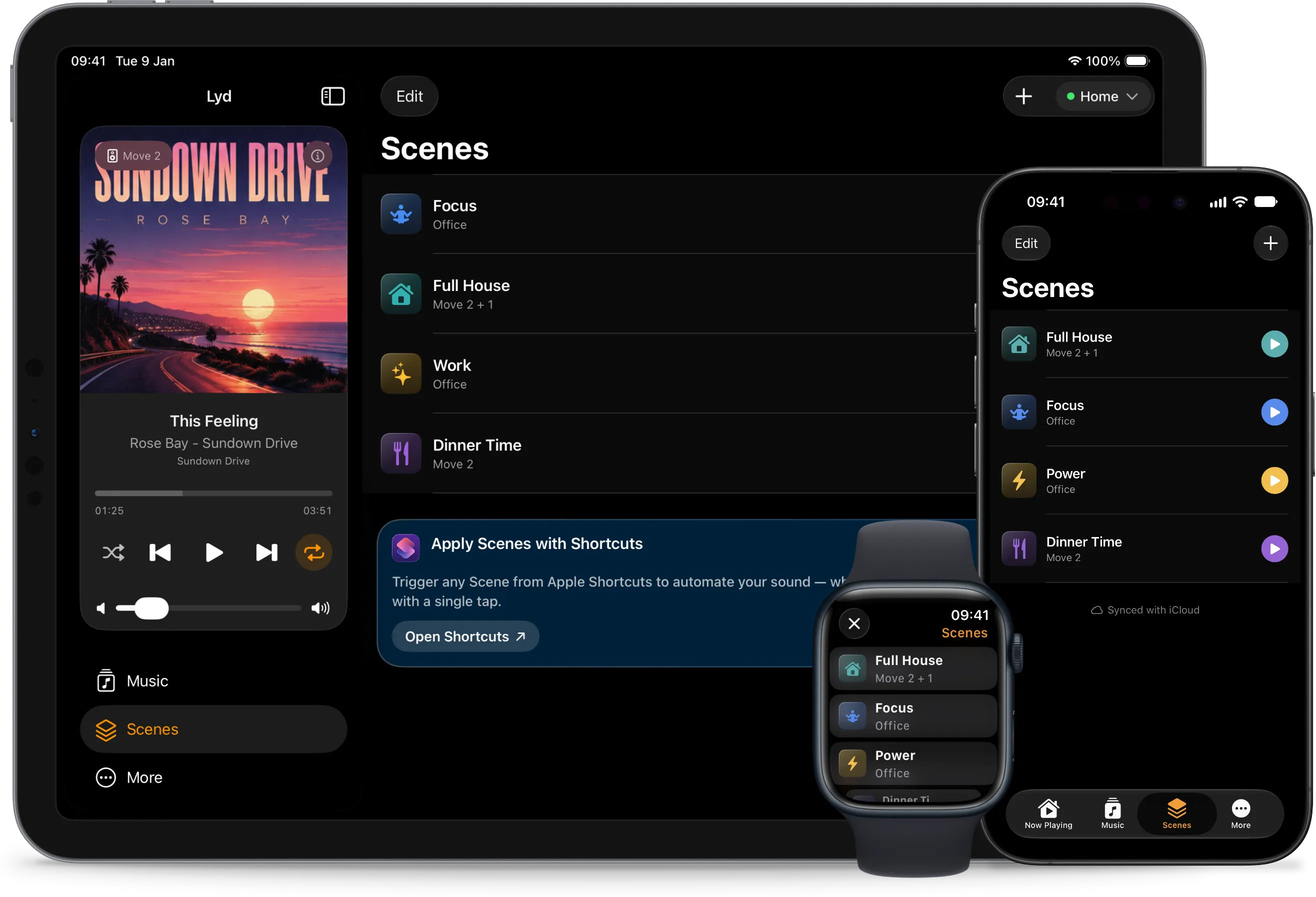
A Scene remembers which speakers play together, which one leads the group, how loud each one is, and what starts playing. Tap it and Lyd sets all of that in about a second. "Morning Kitchen", "Dinner Party", "Movie Night": one tap each.
A Scene can go further than rooms and volumes. It can set bass, treble and loudness, switch a soundbar to Night Mode or Speech Enhancement, start a Sonos Favorite, a playlist, the TV or Line-In, set shuffle and repeat, carry its own Sleep Timer, and pause every speaker that is not part of it.
Scenes are built on the iPhone or iPad, where the editor lives. On the Apple Watch they are a list you apply. Lyd also offers starter Scenes worked out from your speakers and your room names, so there is usually one to try before you build your own.
A Scene belongs to the Sonos system it was made on, and it applies even when half its speakers are missing. Anything it cannot reach it reports instead of failing.
How to create a Scene
- On your iPhone or iPad, open Lyd and go to Scenes
- Tap + for "New Scene". It opens pre-filled from whatever is playing right now
- Under Speakers, pick the rooms and set each one's volume
- Under Source, choose what starts: a favorite, a playlist, TV or Line-In
- Give it a name, an icon and a color, then tap "Create"
iPhone and iPad
One tap from the Home Screen
Home Screen Widgets
Play, pause, skip a track or change the volume from the Home Screen, without opening anything.

The widget shows the room, the artwork and the track, and the controls are live. Tapping play in the widget is one tap. Opening an app to do the same is several.
There are small, medium and large sizes, plus an extra-large one on iPad. The bigger sizes carry the full transport row and volume; the small one is a shortcut to the room you use most. Every size has a refresh button in the corner.
How to add a Home Screen widget
- Press and hold an empty spot on the Home Screen until the apps jiggle
- Tap "Edit" in the top-left corner, then "Add Widget"
- Search for "Lyd for Sonos"
- Swipe left or right to pick a size
- Tap "Add Widget" to place it
iPhone and iPad
Right where you look first
Lock Screen Widgets
Playback controls on the Lock Screen itself, so changing what is playing never means going into an app.

Raise the phone, tap the widget, and the speaker responds. It is the shortest path Lyd has to your music, and it is the one most people end up using.
While the phone is locked, iOS asks Face ID to confirm the tap. That is a glance rather than a trip through another app, but it is a check, so nobody who picks up your phone can turn the kitchen up.
Lyd offers the circular, rectangular and inline shapes iOS supports, so it fits next to the flashlight and the camera or in the wider slot under the clock.
How to add a Lock Screen widget
- Press and hold the Lock Screen until the customization menu appears
- Tap "Customize", then pick your Lock Screen
- Tap the widget area below the clock, or the row at the bottom
- Search for "Lyd for Sonos" and pick a widget
- Tap "Done"
iPhone and iPad
While you are somewhere else
Live Activities and Dynamic Island
Start something playing and the controls follow you: on the Lock Screen as a Live Activity, and in the Dynamic Island while you use other apps.

The Live Activity carries the artwork, the track, the artist and the transport controls. On iPhone 14 Pro and later it also sits in the Dynamic Island, so the volume and the skip button are there while you are reading, mapping or typing.
It appears on its own when playback starts. By default it stays on the Lock Screen as a remote while Lyd is running; turn off "Always Show Live Activities" in Lyd's settings and it only shows while music is playing.
One limit worth knowing: while the phone stays locked the Live Activity does not refresh, so it can still show the previous track until you wake the screen. Tapping a control goes through the same Face ID check as a Lock Screen widget.
How to stop Live Activities mirroring to your Apple Watch
- Live Activities mirror to a paired Apple Watch, which some people find noisy
- On the iPhone, open the Watch app and tap "Smart Stack"
- Turn off "Allow Live Activities"
- Or do the same on the watch itself, under Settings → Smart Stack
Watch only
Talk to the whole house
Voice Messages
Record up to 30 seconds from your wrist and play it on the speakers in the room you choose.
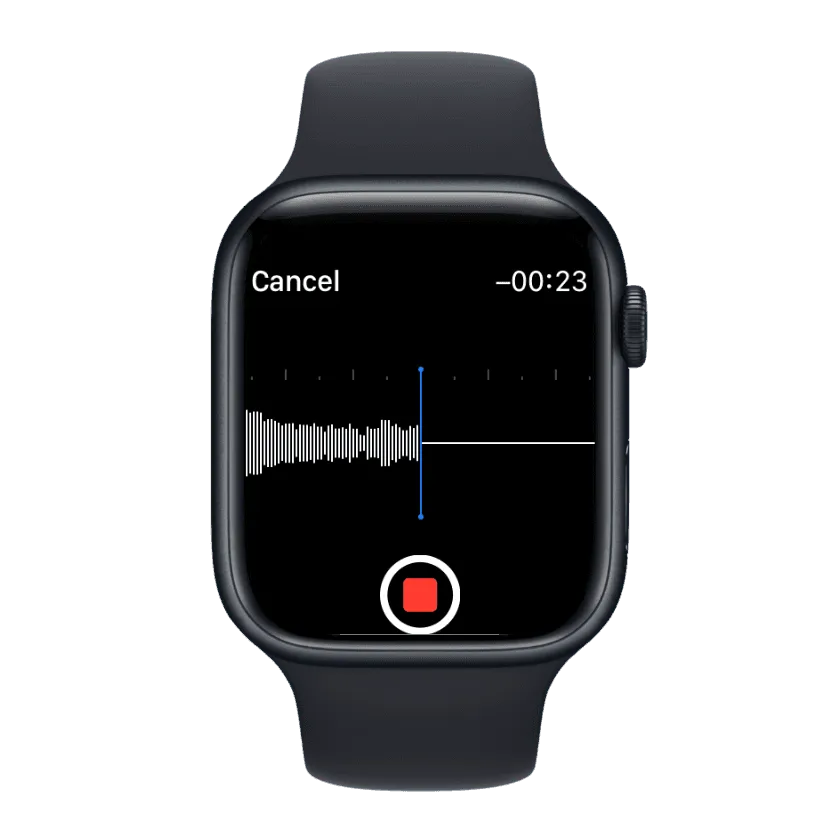
Dinner is ready, the taxi is here, someone left the lights on. The message goes to the room you picked and plays there straight away, which beats shouting up a staircase at someone wearing headphones.
Lyd sends the clip with that speaker's current volume, so it arrives at the level the room is already set to. Sonos ducks whatever is playing, plays your message, and puts the music back.
How to send a voice message
- Pick the room you want the message to play in
- Press and hold the screen, or tap the three dots, to open the menu
- Tap "Voice message"
- Press and hold the record button and speak
- Let go when you are done, and the message plays on the speakers you picked
Watch only
On the watch face
Complications
Put Lyd on your watch face and the app is one tap from wherever you already look.
There are two. One shows which rooms are playing, so you can read the state of the house without opening anything; the other is a plain shortcut into Lyd. Between them they cover the rectangular, circular, corner and inline slots, though not every complication fits every slot.
This is the shortest route Lyd has on the watch. Raise your wrist, tap the face, and you are on the controls. Lyd also ships watch faces built around it, which the iPhone app can hand to your watch.
How to add Lyd to a watch face
- Press and hold the watch face until it enters edit mode
- Tap "Edit" on the face you want to change
- Swipe to the complications screen
- Tap the slot you want to use and scroll to "Lyd"
- Pick the complication style you want, then press the Digital Crown to save
iPhone, iPad and Watch
Hands busy
Siri
Change what the speakers are doing without touching anything, which is the point when you are cooking or mid-set.

Say the command and Lyd carries it out on the room that is playing. The phrases are registered when you install the app, so there is nothing to set up. The command sets differ by device, because the iPhone and the watch register different ones.
Commands Siri knows
- "Louder with Lyd" and "Quieter with Lyd", on every device
- "Apply scene with Lyd", or name it: "Start Dinner Party with Lyd"
- iPhone and iPad: "Play music with Lyd", "Pause group with Lyd", "Pause all with Lyd", "Change music with Lyd", "Set volume with Lyd"
- Apple Watch: "Pause with Lyd", "Next song with Lyd", "Back with Lyd", "Group with Lyd"
Your library, on every device
Browse and Play Music
Sonos Favorites and a search across the streaming services on your system, on the iPhone, the iPad and the watch.
Your Sonos Favorites are there the moment you open Lyd. Search reaches what your Sonos system is connected to, so a playlist, an album or a radio station is a few taps away, or a few turns of the Digital Crown.
Favorites are made in the official Sonos app, which is the better browser and the only place to configure a system. Lyd reads them and they show up within seconds.
On the iPhone and iPad, the Music Library covers the music you own: if Sonos indexes a library on your NAS or a shared folder, Lyd browses it by artist, album, genre, composer, folder, or the playlists Sonos imported from it.
How to change the music on Apple Watch
- Pick the room you want to play in
- Press and hold the screen, or tap the three dots, to open the menu
- Tap "Change music"
- Browse your Sonos Favorites, or search across your services
- Tap anything to start it
How to set up Sonos Favorites
- Open the official Sonos app on your phone
- Find the playlist, album or radio station
- Tap the three dots next to it
- Choose "Save to Sonos Favorites"
- It appears in Lyd within seconds
One room or every room
Manage Groups
Play the same thing in several rooms, or split them up so the kitchen and the office can disagree.
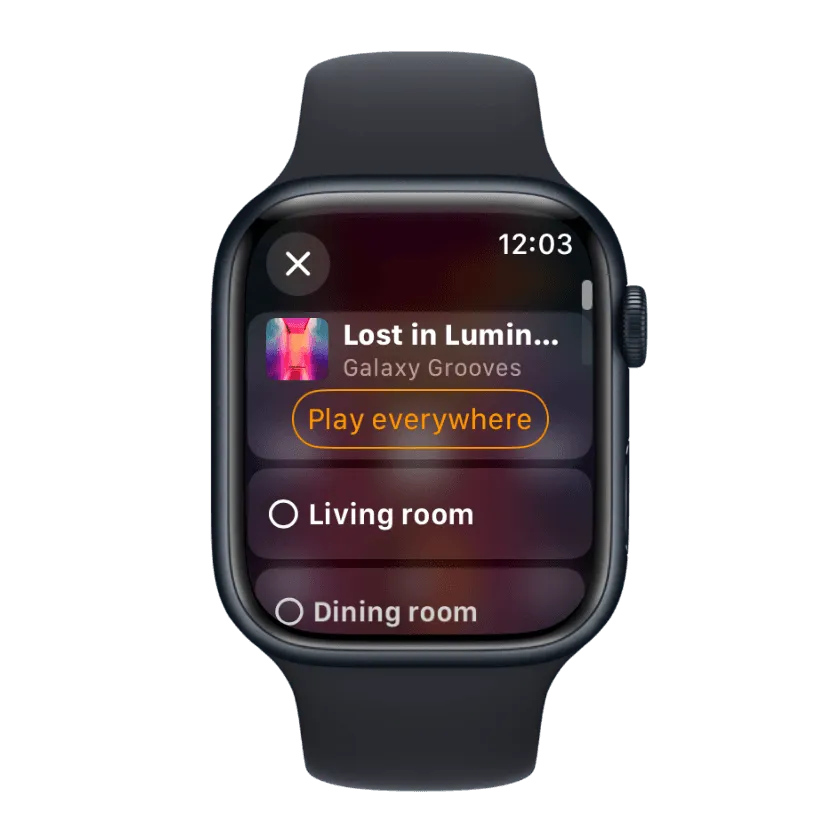
Grouping is the thing people walk to the phone for, and it is two taps on the watch. Add a room to what is already playing, drop one out, or send the whole house the same track.
Ungrouping is the same move in reverse, and every speaker keeps its own level, so nothing comes back at party volume the next morning.
How to manage a group on Apple Watch
- Pick the room already playing the music you want to share
- Press and hold the screen, or tap the three dots, to open the menu
- Tap "Manage group"
- Check the rooms to add, uncheck the rooms to drop
- Tap "Done"
Not Only at Home
Control from Anywhere
The Sonos app needs your home Wi-Fi. Lyd reaches your system through the Sonos cloud, so the remote works from wherever you are.
Turn the kitchen down from the office. Start the music before you are through the door. Check that the house is quiet after everyone has left. Nothing has to be switched on for this and nothing has to be opened up in your router: Lyd talks to Sonos the same way from the sofa and from another country.
Someone else’s speakers
Guest Mode
Control the Sonos speakers on the Wi-Fi you are standing on, without signing into anybody's account.
A friend’s house, a holiday rental, an office. Guest Mode finds the speakers on the local network and talks to them directly. You can play, pause, seek, set the volume of the whole group or one speaker, mute a room, and group or ungroup speakers, without asking anyone for a password.
It is narrow, and the app says so when you turn it on. Choosing what to play needs the host’s Sonos account, so there are no streaming services, no Sonos Favorites and no playlists. Nor is there a next or previous track, shuffle or repeat, a Sleep Timer, or a voice message. Use it for someone else’s system, and sign in for your own.
Nothing is kept. Your own login is untouched while it runs, and switching back to your own system takes the guest access with it.
On iPhone and iPad
- Open the More tab
- Tap the three dots next to "Connected to Sonos"
- Choose "Guest Mode"
On Apple Watch
- Open Options in Lyd
- Tap "Select system"
- Turn on "Guest mode"
Sonos in your routines
Shortcuts and Automation
Lyd hands its actions to the Shortcuts app, so the speakers can respond to a time, a place, an alarm or a Focus mode.

On iPhone and iPad you get Play, Pause, Pause All, Play Music, Set Volume and Apply Scene. The watch adds next track, previous track, volume up and down, and grouping. They run without opening Lyd.
Applying a Scene is the one that makes an automation worth building: a single step, and the rooms, the volumes and the music are all set at once.
How to build a shortcut
- Open the Shortcuts app on your iPhone
- Tap + to start a new shortcut
- Search for "Lyd" to see every action it offers
- Add the actions you want and set the room, volume, Scene or playback options
- Run it by hand, ask Siri for it, or attach it to an automation trigger
Example automations
When the alarm goes off
Apply the "Morning Kitchen" Scene
When you leave home
Pause every room
When a Focus turns on
Drop the office to 20 percent
Old speakers and new ones
Sonos S1 and S2 Support
Lyd controls both Sonos platforms, and switching between them is a menu, not a second app.
Sonos split the platform in 2020. The oldest hardware could not run the new software and stayed on S1; everything since runs S2. The two are separate systems that cannot share rooms or groups, and the official route is one app for each.
In Lyd both appear in the same list. Each one is its own system, and you switch between them where you switch systems. What an S1 system can do is decided by Sonos rather than by Lyd, so expect a slightly smaller set of capabilities there.
More than one place
Multiple Sonos Systems
Speakers at home, speakers at the office, speakers at the house you only visit in August. Lyd switches between them.
Every Sonos system you own shows up in the same list. Pick one and Lyd controls it; pick another and it moves across, including between an S1 and an S2 system. Lyd also picks the system that matches the network you are on, so most of the time the switch has already happened.
On iPhone and iPad
- Open the More tab
- Tap the three dots next to "Connected to Sonos"
- Pick the system you want to control
On Apple Watch
- Open Options in Lyd
- Tap "Select system"
- Pick the system you want to control
One purchase
Family Sharing
Buy Lyd once and everyone in your Family Sharing group has it, on their own iPhone and their own Apple Watch.
Up to five members, no second purchase, no code to pass around. When one person in the group buys Lyd, the purchase reaches the rest through their own Apple Accounts.
How to set it up
- On your iPhone, turn on Family Sharing and Purchase Sharing in Settings → [your name] → Family
- Have each person install Lyd from the App Store with their own Apple Account
- The purchase syncs on its own. Each person gets Lyd on their iPhone and on their paired Apple Watch
Even More to Explore
Smaller things that turn up once you have been using Lyd for a week.
Volume Key Control
Set the speaker's volume with your iPhone's own volume buttons while Lyd is open. Not on the watch.
Sleep Timer
Set it on the Apple Watch, or build one into a Scene. Any device shows a running timer and cancels it.
Digital Crown Volume
Watch only. Turn the crown to set the volume, with haptics on the way.
Home Theater Settings
Night Mode and Speech Enhancement for a soundbar. The screen for them is on the watch; a Scene sets both from the phone.
Individual Speaker Volume
Set the level of one speaker inside a group, on any device.
Playback Modes
Shuffle and repeat everywhere. Crossfade on the Apple Watch.
Podcast and Audiobook Seeking
The skip buttons become 30 seconds forward and back on their own, on every device.
Automatic Speaker Detection
Nothing to configure. Lyd finds what is on the system, and picks the system that matches your network.
Multiple Music Services
Every streaming service your Sonos system plays, including Spotify and Apple Music.
VoiceOver Support
Built for VoiceOver: the controls are labelled throughout, and the music list on the watch changes layout when it is running.
Start Your Free Trial Today
Control Sonos from your wrist, a widget, or away from home. Fourteen days free, every feature included, no signup.