Sonos S1 and S2: What the Split Means for Your Speakers
In 2020 Sonos divided its software into two lines, and a lot of houses ended up with one system on each side. Here is what S1 and S2 actually are, which speakers landed where, what two systems can and cannot do under one roof, and how to control both from an iPhone, an iPad, or an Apple Watch.
8 min read
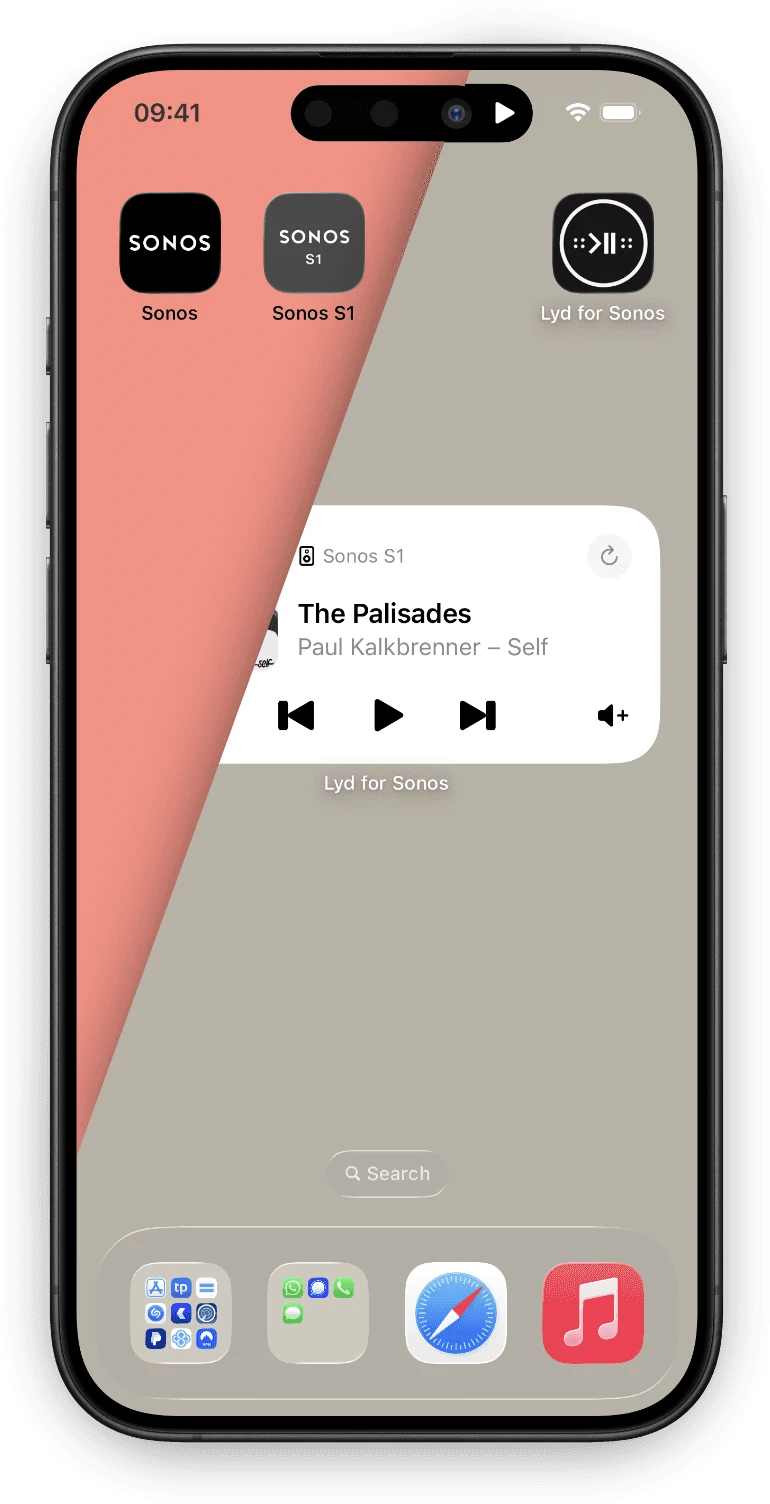
Most people meet the S1/S2 split by accident. You buy a new speaker, the Sonos app tells you it cannot join the system you already have, and you come out the other side owning two Sonos systems instead of one.
Nothing is broken when that happens. It is a line Sonos drew once, in 2020, and has kept since.
Sonos S1 vs S2: What the Two Platforms Are
In May 2020 Sonos separated its software into two lines.
S2 is the current one. Every feature Sonos has added since lands there, and every speaker released since runs it.
S1 is the maintenance line. It exists for products that, in Sonos’s account of it, no longer had the memory and processing headroom to keep up. Those speakers still play, and they still sound the way they did. What they stopped receiving is new software.
Homes that already owned a mix were given a choice rather than a migration: keep everything on S1, or move the capable speakers to S2 and leave the older ones behind as a second, separate system. Most split houses you meet today took the second option, which is why so many people own two Sonos systems without ever deciding to.
| Feature | Sonos S1 maintenance line | Sonos S2 current line |
|---|---|---|
| Official app | Sonos S1 Controller | Sonos |
| New features | No | Yes |
| Takes new speakers | No | Yes |
| Groups with the other system | No | No |
| Lives on your Sonos account | Yes | Yes |
| Sonos Favorites and playlists | Its own list | Its own list |
| Controlled by Lyd | Yes | Yes |
Which speakers are S1, and which are S2?
Ten products never made it to S2. Sonos published the list in 2020 and it has not changed since.
Stayed on S1
- ZonePlayer 80, 90, 100 and 120
- ZonePlayer S5
- Play:5 (Gen 1)
- Connect (Gen 1)
- Connect:Amp (Gen 1)
- Bridge
- CR200 controller
A second group launched on S1 and can be moved to S2: Play:1, Play:3, Play:5 (Gen 2), Playbar, Playbase, One (Gen 1 and Gen 2), Beam (Gen 1), Move, Amp, Port, Boost, Connect (Gen 2), Connect:Amp (Gen 2), Sub (Gen 1 and Gen 2), and the first-generation SYMFONISK models. These are the speakers a split actually turns on. They can sit on either side, and where they end up is a decision somebody made.
Everything Sonos has released since is S2 only: Arc, Arc Ultra, Beam (Gen 2), Era 100, Era 300, Five, Move 2, Ray, Roam, Roam 2, Sub (Gen 3), Sub Mini, Sonos Ace, and the second-generation SYMFONISK models.
Can you use Sonos S1 and S2 together?
Yes, in the sense that both can sit in the same house, on the same network, and on the same Sonos account. No, in the sense that they will never behave as one system.
| The question | The answer |
|---|---|
| Can one speaker be on both? | No. A speaker runs S1 or S2, never both |
| Can an S1 room and an S2 room play in sync? | No. A group only ever contains speakers from one system |
| Can both systems appear in one app? | Yes, if both are registered to the same Sonos account |
| Can one app control both at once? | No. You control one system at a time and switch between them |
Grouping is the hard one, and it is structural rather than a missing feature. In the Sonos API a group is created inside a system and holds players from that system, so there is no request anyone could send that puts a Play:5 on S1 into the same group as an Era on S2. No remote can offer it, ours included. If your kitchen is on one system and your living room on the other, they are two independent playbacks that happen to be in the same building.
Single-stream music services notice both systems. Sonos documents this one: start Spotify on the S2 system and playback from the same Spotify account on the S1 system stops. One account, one stream, wherever it is playing.
Voice assistants need one account per system. Sonos’s own guidance is that using the same voice service on both requires two separate voice service accounts, and that it is not recommended, because speakers within earshot of each other will both answer.
Sonos Favorites and Sonos playlists belong to a system. They are fetched for the system you are on, so two systems means two lists. A station you add on one side does not appear on the other.
The same Sonos account is the requirement that actually matters. A remote signs in to one account and can then see the systems that account owns. Register the two systems to two different accounts and no app will show you both, because from the account’s point of view the other one does not exist.
Sonos vs Sonos S1: The Difference Between the Two Apps
The current Sonos app is an S2 product. It will not control an S1 system, and no setting inside it changes that.
For S1 there is a separate download, the Sonos S1 Controller, which is what most people are looking for when they search for the Sonos legacy app. It is its own app with its own icon, and it stopped gaining features at the same time the speakers did.
So a house with both systems has both apps on it, and each one shows half the speakers. That is the difference people run into. Not two versions of one app, but two apps, each blind to the other’s system.
Controlling S1 and S2 From One App
From a remote’s point of view, an S1 system is not a special case. It is a Sonos system on your account, with rooms and groups and volume, and it answers the same way any other one does.
Lyd for Sonos signs in to your Sonos account and lists every system that account can see. An S1 system appears next to your S2 system, and both are controlled from the same app on iPhone, iPad and Apple Watch: playback, volume, grouping inside each system, room-by-room levels, Sonos Favorites and search. Lyd calls them systems, which is the word Sonos uses too.
How to switch systems
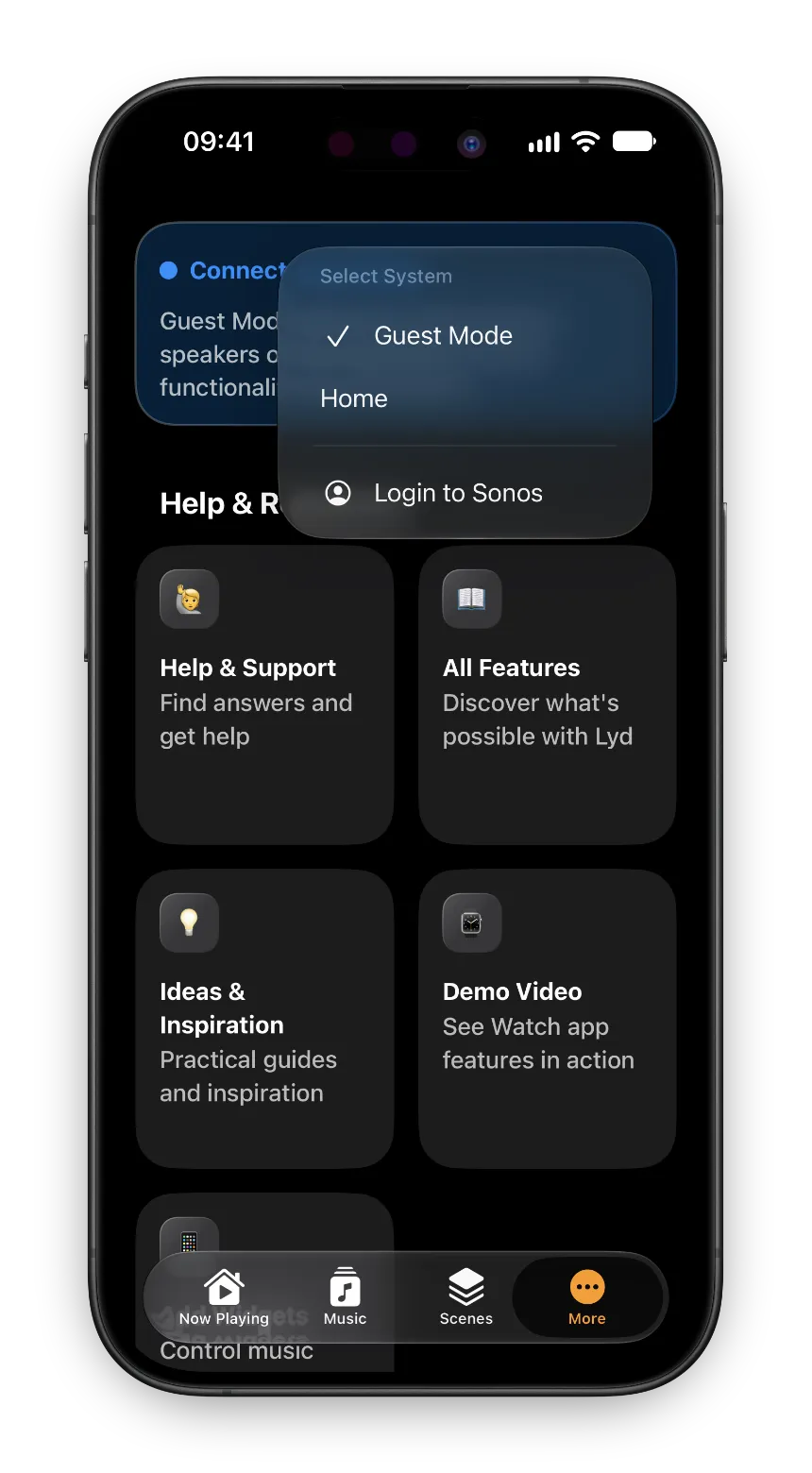
- On iPhone, open the More tab and tap the three dots next to "Connected to Sonos".
- Under "Select System", choose the system you want. Lyd lists each one under the name it carries in Sonos, or as "System 1" and "System 2" if they were never named.
- On iPad, the same menu sits behind the status pill in the toolbar.
- On Apple Watch, open Options and tap "Select system".
The rooms reload and nothing signs out. Speakers on the other system keep playing; all that changes is which half of the house the app is pointed at. Lyd opens on the system you used last, so a house that mostly lives on one side is not asked to choose every time.
The rest of the app follows the selection with it. Widgets on iPhone and iPad, the Lock Screen controls and the Dynamic Island all drive whichever system is currently chosen, so a Play:5 (Gen 1) from 2009 turns up on the Lock Screen the same way a room on S2 does.
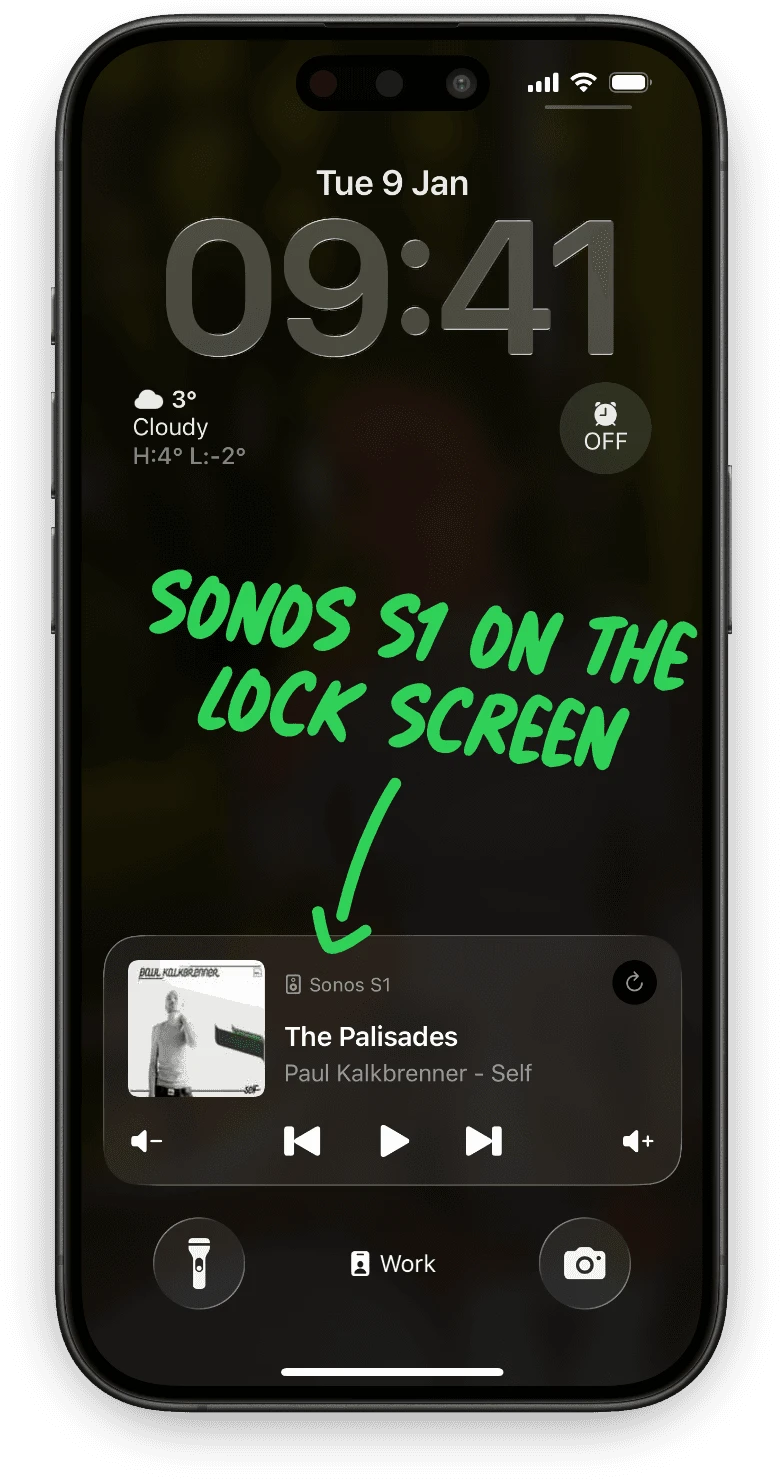
One honest caveat: what a system exposes to any remote is decided by Sonos rather than by Lyd, so an S1 system is not guaranteed to answer identically to an S2 one on every command. And if an S1 system does not appear in the list at all, it is almost always the account question above rather than the software generation.
When the System Isn’t on Your Account
The account rule leaves one case open: a Sonos system you have no account for. Someone else’s house, a rental, an office system that IT registered. Or, in a split house, an S1 system that ended up on a family member’s account years ago and would be a nuisance to move.
Guest Mode covers that one. Lyd sets your account aside and finds the speakers on the network you are currently connected to, with no login and nothing added to your account. Discovery happens locally, so the generation does not matter: S1 speakers announce themselves the same way S2 ones do.
It comes with a real trade, and the app says so before you turn it on. You get play, pause, seek, the volume of a whole group or a single speaker, and grouping or ungrouping rooms. Choosing what to play needs the host’s Sonos account, so music services, Sonos Favorites and playlists are not available while Guest Mode is on. It also works only on the network the speakers are on.
Control a Sonos System That Isn't Yours
A friend's house, a rental, an office system nobody will give you the login for. Guest Mode controls the speakers on the Wi-Fi you are already on, without an account and without touching the owner's.
Read the GuideWhat This Actually Fixes
The split is not going to be undone, and no app is going to group an S1 room with an S2 one. What is fixable is everything around it: two systems on one account, one app across the phone, the iPad and the watch, a switch that does not sign you out, and something sensible to do when the speakers in front of you belong to somebody else.
Try Lyd for Sonos free for 14 days, no signup required. Available on the App Store.


